

Skip to content

Which store is yours? We'll remember it and show you the right details.

Ed's PCs
Support

Tech Zone

Keyboard Shortcuts

489 shortcuts for Windows, Mac and Linux — plus Office, the browsers and the Adobe suite. Pick your system and it shows the right keys, with the right modifier, every time.

Nothing to install and nothing to sign up for. Print it, bookmark it, or send it to whoever in the office still right-clicks to copy.

1. What are you using?

If you only learn ten

These are the ones that pay for themselves the first week. Everything below is a bonus.

  1. 1CopyCtrlC
  2. 2PasteCtrlV
  3. 3Paste as plain text (drops the fonts and colours)CtrlShiftV
  4. 4UndoCtrlZ
  5. 5SaveCtrlS
  6. 6Find on this page or in this documentCtrlF
  7. 7Snap the window to the left or right halfWin←
  8. 8Lock the screenWinL
  9. 9Switch between open appsAltTab
  10. 10Open File ExplorerWinE
  1. 1Copy⌘C
  2. 2Paste⌘V
  3. 3Paste as plain text (drops the fonts and colours)⌘⌥⇧V
  4. 4Undo⌘Z
  5. 5Save⌘S
  6. 6Find on this page or in this document⌘F
  7. 7Spotlight — search, launch apps, do sums, convert units⌘Space
  8. 8Switch between apps⌘Tab
  9. 9Switch between windows of the SAME app⌘`
  10. 10Quit the app properly⌘Q
  1. 1CopyCtrlC
  2. 2PasteCtrlV
  3. 3Paste as plain text (drops the fonts and colours)CtrlShiftV
  4. 4UndoCtrlZ
  5. 5SaveCtrlS
  6. 6Find on this page or in this documentCtrlF
  7. 7Activities overview — search and launchSuper
  8. 8Switch between appsAltTab
  9. 9Lock the screenSuperL
  10. 10Copy and paste IN the terminalCtrlShiftC

What those symbols mean

Apple prints symbols rather than words, on the keyboard and in every menu. These four are the whole language.

⌘
Command
The main one — the Mac's Ctrl
⌥
Option
Also printed “Alt”
⇧
Shift
Same as anywhere else
⌃
Control
Its own key — not ⌘
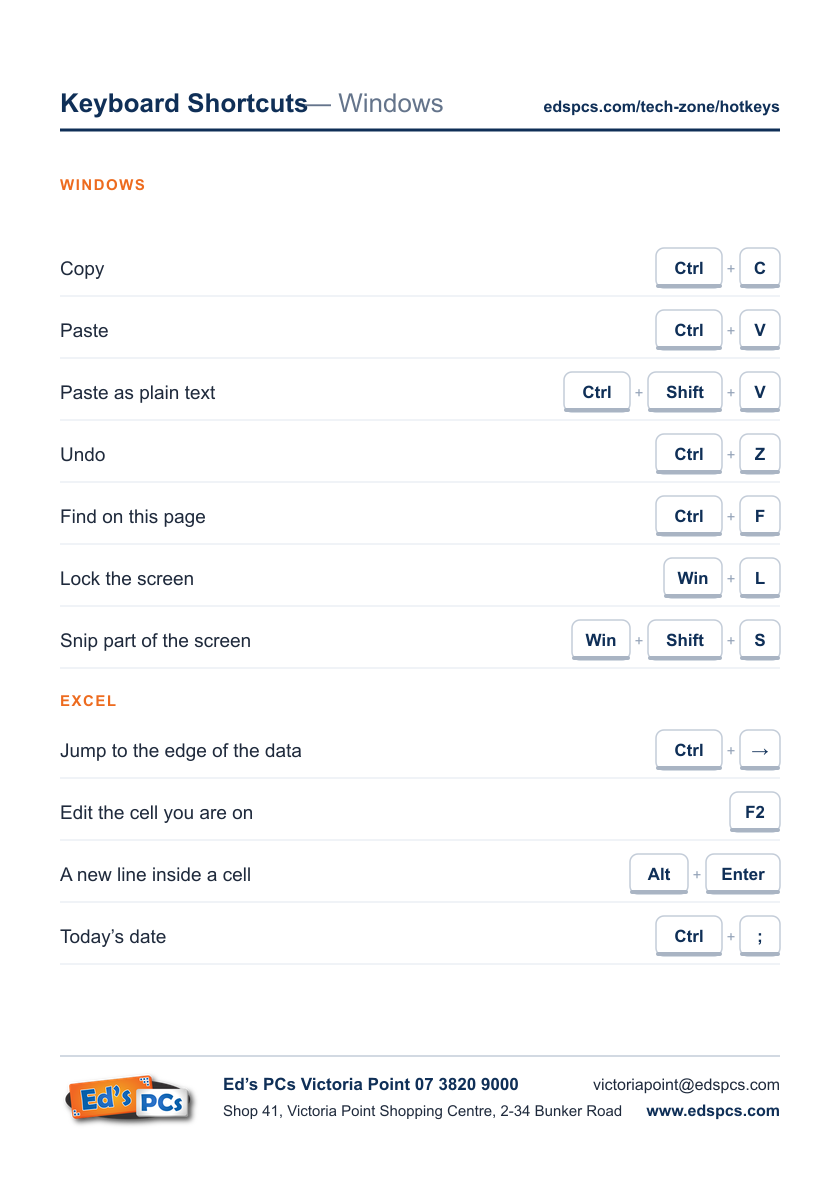
An example printed cheat sheet: shortcuts down the page with the keys beside them, and Ed's PCs details along the bottom.

Build your own cheat sheet

Nobody needs all 489. Pick out the handful you'll actually use and print those on their own — one clean page for the wall beside your desk, with our details on the bottom in case you need us.

  1. 1. Hit the button — tick boxes appear next to every shortcut.
  2. 2. Tick the ones you want. They stack up in a list at the bottom of the screen.
  3. 3. Print it, save it as a PDF, or send it to someone else. That's it.

Tip for a cleaner page: in the print window open More settings and untick Headers and footers — that's what adds the browser's own date and web address at the top and bottom. Your browser remembers it after the first time. Want a file instead of paper? Change the destination to Save as PDF.
The basicsWindowsmacOSLinux

Windows

Windows 10 and 11. The Windows key does far more than open the Start menu — the window snapping and the clipboard history alone are worth the five minutes.

The ones that work almost everywhere

  • Copy
    CtrlC⌘C
  • Cut
    CtrlX⌘X
  • Paste
    CtrlV⌘V
  • Paste as plain text (drops the fonts and colours)The one people ask for most. Word is the odd one out — see the Word section.
    CtrlShiftV⌘⌥⇧V
  • Undo
    CtrlZ⌘Z
  • RedoCtrl+Shift+Z also works in most Windows apps.
    CtrlY⌘⇧ZCtrlShiftZ
  • Select everything
    CtrlA⌘A
  • Save
    CtrlS⌘S
  • Print
    CtrlP⌘P
  • Find on this page or in this document
    CtrlF⌘F
  • New
    CtrlN⌘N
  • Open
    CtrlO⌘O
  • Close the tab or window
    CtrlW⌘W
  • Bold
    CtrlB⌘B
  • Italic
    CtrlI⌘I
  • Underline
    CtrlU⌘U
  • Settings or Preferences for the app you are inA Mac convention, and it works in almost every Mac app.
    ⌘,

Windows, desktops and screens

  • Snap the window to the left or right halfThen pick what fills the other half. Use the right arrow for the other side.
    Win←⌘←Super←
  • Maximise the window
    Win↑⌘↑Super↑
  • Minimise, or restore it back down
    Win↓⌘↓Super↓
  • Show the desktop
    WinD⌘DSuperD
  • Lock the screenWorth a habit any time you walk away from the desk.
    WinL⌘LSuperL
  • Switch between open apps
    AltTab⌥Tab
  • Task View — every window at once
    WinTab⌘TabSuperTab
  • New virtual desktop
    WinCtrlD⌘⌃DSuperCtrlD
  • Move between virtual desktops
    WinCtrl→⌘⌃→SuperCtrl→
  • Second screen / projector optionsDuplicate, extend, or second screen only.
    WinP⌘PSuperP
  • Close the current app
    AltF4⌥F4

Getting at things fast

  • Open File Explorer
    WinE⌘ESuperE
  • Search Windows
    WinS⌘SSuperS
  • Settings
    WinI⌘ISuperI
  • The power-user menu (Device Manager, Disk Management, Terminal)Much faster than hunting through Settings.
    WinX⌘XSuperX
  • Run box
    WinR⌘RSuperR
  • Task Manager, straight upSkips the Ctrl+Alt+Del menu entirely.
    CtrlShiftEsc⌃⇧Esc
  • The Ctrl+Alt+Del menu
    CtrlAltDelete⌃⌥⌫
  • Emoji and symbol picker
    Win.⌘.Super.
  • Clipboard history — the last several things you copiedNeeds turning on the first time; Windows offers when you press it.
    WinV⌘VSuperV
  • Xbox Game Bar (has a handy performance overlay)
    WinG⌘GSuperG

Screenshots

  • Snip part of the screenDrag a box; it lands on the clipboard and in Snipping Tool.
    WinShiftS⌘⇧SSuperShiftS
  • Whole screen, saved to Pictures\Screenshots
    WinPrtScn⌘PrtScnSuperPrtScn
  • Whole screen to the clipboard
    PrtScn
  • Just the window you are in, to the clipboard
    AltPrtScn⌥PrtScn

File Explorer

  • New folder
    CtrlShiftN⌘⇧N
  • Rename the selected file
    F2
  • Delete permanently, skipping the Recycle BinNo undo. Be sure.
    ShiftDelete⇧⌫
  • Properties of the selected item
    AltEnter⌥Return
  • Up one folder
    Alt↑⌥↑
  • Back and forward
    Alt←⌥←
  • Click into the address bar (type or paste a path)
    AltD⌥D
  • New tab (Windows 11)
    CtrlT⌘T

Moving around text without the mouse

  • Jump one word left or rightCtrl+Right goes the other way.
    Ctrl←
  • Delete the whole word before the cursor
    CtrlBackspace
  • Start or end of the lineEnd for the other end.
    Home
  • Top or bottom of the document
    CtrlHome
  • Select as you move — add Shift to any of the above
    Shift←
  • Select the rest of the line
    ShiftEnd
  • Select the next word
    CtrlShift→

Zoom and accessibility

  • Magnifier onThe Windows key and Esc turns it off again.
    Win+⌘+Super+
  • Zoom in and out of a page or document
    Ctrl+⌘+
  • Back to normal zoom
    Ctrl0⌘0

macOS

The modifier keys are the whole game: ⌘ Command, ⌥ Option, ⌃ Control and ⇧ Shift. Spotlight alone replaces most of the Dock.

The ones that work almost everywhere

  • Copy
    CtrlC⌘C
  • Cut
    CtrlX⌘X
  • Paste
    CtrlV⌘V
  • Paste as plain text (drops the fonts and colours)The one people ask for most. Word is the odd one out — see the Word section.
    CtrlShiftV⌘⌥⇧V
  • Undo
    CtrlZ⌘Z
  • RedoCtrl+Shift+Z also works in most Windows apps.
    CtrlY⌘⇧ZCtrlShiftZ
  • Select everything
    CtrlA⌘A
  • Save
    CtrlS⌘S
  • Print
    CtrlP⌘P
  • Find on this page or in this document
    CtrlF⌘F
  • New
    CtrlN⌘N
  • Open
    CtrlO⌘O
  • Close the tab or window
    CtrlW⌘W
  • Bold
    CtrlB⌘B
  • Italic
    CtrlI⌘I
  • Underline
    CtrlU⌘U
  • Settings or Preferences for the app you are inA Mac convention, and it works in almost every Mac app.
    ⌘,

Apps and windows

  • Spotlight — search, launch apps, do sums, convert units
    CtrlSpace⌘Space
  • Switch between apps
    CtrlTab⌘Tab
  • Switch between windows of the SAME appThe one people miss — ⌘Tab only cycles apps.
    Ctrl`⌘`
  • Quit the app properlyClosing the last window (⌘W) does NOT quit a Mac app.
    CtrlQ⌘Q
  • Close the window
    CtrlW⌘W
  • Hide the app you are in
    CtrlH⌘H
  • Hide everything else
    CtrlAltH⌘⌥H
  • Minimise to the Dock
    CtrlM⌘M
  • Force Quit dialogThe Mac equivalent of Ctrl+Alt+Del.
    CtrlAltEsc⌘⌥Esc
  • Mission Control — every window at once
    Ctrl↑⌃↑
  • Every window of the current app
    Ctrl↓⌃↓
  • Move between desktops / full-screen apps
    Ctrl→⌃→
  • Lock the screen
    CtrlCtrlQ⌃⌘Q
  • Full screen
    CtrlCtrlF⌃⌘F

Screenshots

  • Whole screen
    CtrlShift3⌘⇧3
  • Drag a box around part of the screen
    CtrlShift4⌘⇧4
  • Just one window, cleanly, with its shadowPress it, then tap Space and click the window.
    CtrlShift4⌘⇧4
  • The screenshot and screen-recording toolbar
    CtrlShift5⌘⇧5
  • Send it to the clipboard instead of the desktopAdd Control to any of the above.
    CtrlCtrlShift4⌃⌘⇧4

Finder

  • Rename the selected fileNot F2 — and Enter does NOT open it, which catches out every Windows switcher.
    EnterReturn
  • Open the selected file
    Ctrl↓⌘↓
  • Quick Look — peek inside without openingWorks on almost anything. Space again closes it.
    Space
  • New folder
    CtrlShiftN⌘⇧N
  • Go to a folder by typing its path
    CtrlShiftG⌘⇧G
  • Get Info
    CtrlI⌘I
  • Move to the Bin
    CtrlDelete⌘⌫
  • Empty the Bin
    CtrlShiftDelete⌘⇧⌫
  • Applications folder
    CtrlShiftA⌘⇧A
  • Downloads folder
    CtrlAltL⌘⌥L
  • Home folder
    CtrlShiftH⌘⇧H
  • Show the path bar
    CtrlAltP⌘⌥P
  • Show hidden files
    CtrlShift.⌘⇧.
  • Copy a file, then MOVE it instead of copyingCopy with ⌘C, then ⌥⌘V pastes it as a move.
    CtrlAltV⌘⌥V

Moving around text without the mouse

  • Jump one word left or right⌥Right goes the other way.
    ⌥←
  • Delete the whole word before the cursor
    ⌥⌫
  • Start or end of the line⌘Right for the other end.
    ⌘←
  • Top or bottom of the document
    ⌘↑
  • Delete forwards (the key a Mac keyboard doesn’t have)
    Fn⌫
  • Select as you move — add ⇧ to any of the above
    ⇧←

Handy odds and ends

  • Emoji and symbols
    CtrlCtrlSpace⌃⌘Space
  • Zoom in and out of a document
    Ctrl+⌘+
  • Back to normal zoom
    Ctrl0⌘0
  • Volume and brightness in smaller stepsHold ⇧⌥ while tapping a volume or brightness key for quarter-steps.
    ShiftAltF12⇧⌥F12
  • Screenshot the Touch Bar (if you have one)
    CtrlShift6⌘⇧6

Linux

These are GNOME shortcuts — the desktop on Ubuntu and Fedora. KDE, XFCE and the rest use many of the same ones, but not all: if something here does nothing, check your desktop’s own keyboard settings.

The ones that work almost everywhere

  • Copy
    CtrlC⌘C
  • Cut
    CtrlX⌘X
  • Paste
    CtrlV⌘V
  • Paste as plain text (drops the fonts and colours)The one people ask for most. Word is the odd one out — see the Word section.
    CtrlShiftV⌘⌥⇧V
  • Undo
    CtrlZ⌘Z
  • RedoCtrl+Shift+Z also works in most Windows apps.
    CtrlY⌘⇧ZCtrlShiftZ
  • Select everything
    CtrlA⌘A
  • Save
    CtrlS⌘S
  • Print
    CtrlP⌘P
  • Find on this page or in this document
    CtrlF⌘F
  • New
    CtrlN⌘N
  • Open
    CtrlO⌘O
  • Close the tab or window
    CtrlW⌘W
  • Bold
    CtrlB⌘B
  • Italic
    CtrlI⌘I
  • Underline
    CtrlU⌘U
  • Settings or Preferences for the app you are inA Mac convention, and it works in almost every Mac app.
    ⌘,

The desktop

  • Activities overview — search and launchTap the Super (Windows) key on its own.
    Win⌘Super
  • Switch between apps
    AltTab⌥Tab
  • Switch between windows of the same app
    Alt`⌥`
  • Close the window
    AltF4⌥F4
  • Move between workspacesPage Up for the other direction.
    WinPage Down⌘Page DownSuperPage Down
  • Lock the screen
    WinL⌘LSuperL
  • Snap the window to one side
    Win←⌘←Super←
  • Maximise
    Win↑⌘↑Super↑
  • Show all windows
    WinS⌘SSuperS

Terminal — the ones that catch people out

  • Copy and paste IN the terminalCtrl+Shift+V to paste. Plain Ctrl+C does NOT copy here — it stops the running command, which is exactly why this trips people up.
    CtrlShiftC⌃⇧C
  • Open a terminalUbuntu and most GNOME systems.
    CtrlAltT⌃⌥T
  • Stop whatever is running
    CtrlC⌃C
  • Clear the screen
    CtrlL⌃L
  • Search back through your command history
    CtrlR⌃R
  • Jump to the start or end of the lineCtrl+E for the end.
    CtrlA⌃A
  • Finish the word or filename you started typing
    Tab

Screenshots

  • Whole screen
    PrtScn
  • Drag a box around part of it
    ShiftPrtScn⇧PrtScn
  • Just the current window
    AltPrtScn⌥PrtScn

Word

Formatting and navigation. The paste-as-plain-text one and the format painter save the most time by a distance.

Formatting

  • Bigger or smaller text, one step at a timeThe comma key goes the other way.
    CtrlShift.⌘⇧.
  • Copy the formatting of the selected textThe keyboard format painter — then paint it on with the row below.
    CtrlShiftC⌘⇧C
  • Paste that formatting onto something else
    CtrlShiftV⌘⇧V
  • Strip all formatting back to plainClears character formatting from the selection.
    CtrlSpace⌘Space
  • Paste Special (this is Word’s plain-text paste)Word does NOT use Ctrl+Shift+V for plain text the way browsers do.
    CtrlAltV⌘⌃V
  • Centre, left, right, justifyCtrl+L, Ctrl+R and Ctrl+J for the others.
    CtrlE⌘E
  • Back to the Normal style
    CtrlShiftN⌘⇧N
  • Heading 1, 2 or 3
    CtrlAlt1⌘⌥1
  • Change UPPER / lower / Title casePress again to cycle. Rescues anything typed with Caps Lock on.
    ShiftF3⇧F3
  • Insert a link
    CtrlK⌘K

Writing and reviewing

  • Show the paragraph marks and spacesThe single best way to work out why a layout is misbehaving.
    CtrlShift8⌘⇧8
  • Word count
    CtrlShiftG⌘⇧G
  • Spelling and grammar
    F7
  • New comment
    CtrlAltM⌘⌥M
  • Track changes on or off
    CtrlShiftE⌘⇧E
  • A proper page breakRather than hammering Enter until the text falls onto the next page.
    CtrlEnter⌘Return
  • Navigation pane / find
    CtrlF⌘F
  • Go back to where you were last editing
    ShiftF5⇧F5

Excel

Where shortcuts pay for themselves fastest. The Ctrl+arrow jumps and Ctrl+Shift+arrow selections are the ones to learn first.

Getting around a big sheet

  • Jump to the edge of the dataAny arrow. Hits the last filled cell in that direction.
    Ctrl→⌘→
  • Select everything from here to the edge of the data
    CtrlShift→⌘⇧→
  • Back to A1
    CtrlHome⌘Home
  • The last cell with anything in it
    CtrlEnd⌘End
  • Next or previous sheet
    CtrlPage Down⌥→
  • Select the whole column
    CtrlSpace⌃Space
  • Select the whole row
    ShiftSpace⇧Space

Entering and editing

  • Edit the cell you are on
    F2⌃U
  • A new line INSIDE a cellNot Enter, which just moves down.
    AltEnter⌃⌥Return
  • Fill the whole selection with what you typedSelect the range first, type once, then this.
    CtrlEnter⌘Return
  • Copy the cell above down
    CtrlD⌘D
  • Copy the cell to the left across
    CtrlR⌘R
  • Today’s date
    Ctrl;⌘;
  • The time now
    CtrlShift;⌘⇧;
  • AutoSum
    Alt=⌘⇧T
  • Lock a reference ($A$1) while editing a formulaPress repeatedly to cycle $A$1 → A$1 → $A1 → A1.
    F4⌘T

Formatting and structure

  • Format Cells dialog
    Ctrl1⌘1
  • Insert rows or columns
    CtrlShift=⌘⇧=
  • Delete rows or columns
    Ctrl−⌘−
  • Turn filters on or off
    CtrlShiftL⌘⇧F
  • Make it a table
    CtrlT⌘T
  • Currency format
    CtrlShift4⌘⇧4
  • Percentage format
    CtrlShift5⌘⇧5
  • Show the formulas instead of the answersBrilliant for finding the one cell someone typed a number into.
    Ctrl`⌘`
  • Recalculate everything
    F9

PowerPoint

Half of these are for while you are actually presenting — the blank-screen one has rescued many a meeting.

Building the deck

  • New slide
    CtrlM⌘M
  • Duplicate the slide
    CtrlD⌘D
  • Group / ungroup the selected objectsCtrl+Shift+G ungroups.
    CtrlG⌘G
  • Bring to front / send to back
    CtrlShiftF⌘⇧F
  • Nudge an object one pixelHold Ctrl while tapping an arrow for fine positioning.
    Ctrl→⌃→
  • Duplicate the selected object in place
    CtrlD⌘D

Presenting

  • Start the show from the beginning
    F5
  • Start from the slide you are on
    ShiftF5⇧F5
  • Presenter view
    AltF5⌥F5
  • Black the screen out mid-presentationPress B again to come back. W does the same in white. The best trick on this page.
    B
  • Jump to a specific slideType the slide number first, then Enter.
    EnterReturn
  • Draw on the slideCtrl+E for the eraser, E to erase everything.
    CtrlP⌘P
  • End the show
    Esc

Outlook

Worth learning if you live in your inbox. Ctrl+Enter to send becomes muscle memory within a day.

Mail

  • New emailCtrl+Shift+M works from anywhere in Outlook.
    CtrlN⌘N
  • Send
    CtrlEnter⌘Return
  • Reply
    CtrlR⌘R
  • Reply to everyoneWorth a half-second pause before you use it.
    CtrlShiftR⌘⇧R
  • Forward⚠️ In Outlook this is Forward, NOT Find. Search is Ctrl+E.
    CtrlF⌘F
  • Search
    CtrlE⌘E
  • Send and receive everything now
    F9
  • Move to a folder
    CtrlShiftV⌘⇧V
  • Mark as read
    CtrlQ⌘Q
  • Flag for follow-up
    CtrlShiftG⌘⇧G
  • Delete
    Delete⌫

Around Outlook

  • Mail
    Ctrl1⌘1
  • Calendar
    Ctrl2⌘2
  • Contacts
    Ctrl3⌘3
  • Tasks
    Ctrl4⌘4
  • New appointment
    CtrlShiftA⌘⇧A
  • New meeting request
    CtrlShiftQ⌘⇧Q
  • Address book
    CtrlShiftB⌘⇧B

Chrome

Everything in this section works in Chrome. Most of it works in Edge, Firefox and Safari too — the private-window one is where they part company.

Tabs

  • New tab
    CtrlT⌘T
  • Close the tab
    CtrlW⌘W
  • Reopen the tab you just closedKeeps going back through the ones before it, too. The single most useful browser shortcut there is.
    CtrlShiftT⌘⇧T
  • Next or previous tabAdd Shift to go the other way.
    CtrlTab⌃Tab
  • Jump to tab 1 to 8
    Ctrl1⌘1
  • Jump to the LAST tab
    Ctrl9⌘9
  • New window
    CtrlN⌘N
  • Open the link in a new background tab
    Ctrlclick⌘click
  • Open the link and go straight to it
    CtrlShiftclick⌘⇧click

Getting around

  • Click into the address bar and select it
    CtrlL⌘L
  • Back
    Alt←⌘←
  • Forward
    Alt→⌘→
  • Reload
    CtrlR⌘R
  • Reload and ignore the cached copyThe fix when a page looks stale or half-broken.
    CtrlShiftR⌘⇧R
  • Find on the page
    CtrlF⌘F
  • Scroll down a screenShift+Space goes back up.
    Space
  • Top or bottom of the page
    Home
  • Full screen
    F11⌃⌘F

Zoom, history and tools

  • Zoom in or outCtrl and the minus key zooms out.
    Ctrl+⌘+
  • Back to 100%Fixes the "everything went huge" call we get weekly.
    Ctrl0⌘0
  • Bookmark this page
    CtrlD⌘D
  • Downloads
    CtrlJ⌘⌥L
  • Clear browsing data
    CtrlShiftDelete⌘⇧⌫
  • Print
    CtrlP⌘P
  • Developer tools
    F12⌘⌥I

Chrome specifics

  • New incognito window
    CtrlShiftN⌘⇧N
  • History
    CtrlH⌘Y
  • Bookmark manager
    CtrlShiftO⌘⇧O
  • Show or hide the bookmarks bar
    CtrlShiftB⌘⇧B
  • Task manager (which tab is eating the CPU)Genuinely useful when the fan spins up for no reason.
    ShiftEsc

Edge

Edge is built on the same engine as Chrome, so nearly every Chrome shortcut works here. If you came looking for Internet Explorer — it was retired in 2022 and removed from Windows; Edge is what replaced it.

Looking for Internet Explorer? Retired in June 2022 and removed from Windows. Its shortcuts live on in Edge, which is built to open anything that genuinely still needs IE. If a work system insists on Internet Explorer, ask us about Edge’s IE mode rather than trying to reinstall it.

Tabs

  • New tab
    CtrlT⌘T
  • Close the tab
    CtrlW⌘W
  • Reopen the tab you just closedKeeps going back through the ones before it, too. The single most useful browser shortcut there is.
    CtrlShiftT⌘⇧T
  • Next or previous tabAdd Shift to go the other way.
    CtrlTab⌃Tab
  • Jump to tab 1 to 8
    Ctrl1⌘1
  • Jump to the LAST tab
    Ctrl9⌘9
  • New window
    CtrlN⌘N
  • Open the link in a new background tab
    Ctrlclick⌘click
  • Open the link and go straight to it
    CtrlShiftclick⌘⇧click

Getting around

  • Click into the address bar and select it
    CtrlL⌘L
  • Back
    Alt←⌘←
  • Forward
    Alt→⌘→
  • Reload
    CtrlR⌘R
  • Reload and ignore the cached copyThe fix when a page looks stale or half-broken.
    CtrlShiftR⌘⇧R
  • Find on the page
    CtrlF⌘F
  • Scroll down a screenShift+Space goes back up.
    Space
  • Top or bottom of the page
    Home
  • Full screen
    F11⌃⌘F

Zoom, history and tools

  • Zoom in or outCtrl and the minus key zooms out.
    Ctrl+⌘+
  • Back to 100%Fixes the "everything went huge" call we get weekly.
    Ctrl0⌘0
  • Bookmark this page
    CtrlD⌘D
  • Downloads
    CtrlJ⌘⌥L
  • Clear browsing data
    CtrlShiftDelete⌘⇧⌫
  • Print
    CtrlP⌘P
  • Developer tools
    F12⌘⌥I

Edge specifics

  • New InPrivate window
    CtrlShiftN⌘⇧N
  • History
    CtrlH⌘H
  • Favourites bar on or off
    CtrlShiftB⌘⇧B
  • Add this tab to favourites
    CtrlD⌘D
  • Read aloudSurprisingly good, and free.
    CtrlShiftU⌃⇧U
  • Split screenTwo pages side by side in one tab.
    CtrlShift2⌘⇧2

Firefox

Shares almost all of the standard set. The private-browsing shortcut is P here, not N.

Tabs

  • New tab
    CtrlT⌘T
  • Close the tab
    CtrlW⌘W
  • Reopen the tab you just closedKeeps going back through the ones before it, too. The single most useful browser shortcut there is.
    CtrlShiftT⌘⇧T
  • Next or previous tabAdd Shift to go the other way.
    CtrlTab⌃Tab
  • Jump to tab 1 to 8
    Ctrl1⌘1
  • Jump to the LAST tab
    Ctrl9⌘9
  • New window
    CtrlN⌘N
  • Open the link in a new background tab
    Ctrlclick⌘click
  • Open the link and go straight to it
    CtrlShiftclick⌘⇧click

Getting around

  • Click into the address bar and select it
    CtrlL⌘L
  • Back
    Alt←⌘←
  • Forward
    Alt→⌘→
  • Reload
    CtrlR⌘R
  • Reload and ignore the cached copyThe fix when a page looks stale or half-broken.
    CtrlShiftR⌘⇧R
  • Find on the page
    CtrlF⌘F
  • Scroll down a screenShift+Space goes back up.
    Space
  • Top or bottom of the page
    Home
  • Full screen
    F11⌃⌘F

Zoom, history and tools

  • Zoom in or outCtrl and the minus key zooms out.
    Ctrl+⌘+
  • Back to 100%Fixes the "everything went huge" call we get weekly.
    Ctrl0⌘0
  • Bookmark this page
    CtrlD⌘D
  • Downloads
    CtrlJ⌘⌥L
  • Clear browsing data
    CtrlShiftDelete⌘⇧⌫
  • Print
    CtrlP⌘P
  • Developer tools
    F12⌘⌥I

Firefox specifics

  • New private window⚠️ P, not N — the one that catches out Chrome users.
    CtrlShiftP⌘⇧P
  • Library (history, bookmarks, downloads)
    CtrlShiftO⌘⇧O
  • History sidebar
    CtrlShiftH⌘⇧H
  • Reader viewStrips a cluttered article back to just the words.
    F9⌘⌥R
  • Search with a different engine
    CtrlK⌘K

Safari

The Mac default. Mostly standard, with a few of its own.

Tabs

  • New tab
    CtrlT⌘T
  • Close the tab
    CtrlW⌘W
  • Reopen the tab you just closedKeeps going back through the ones before it, too. The single most useful browser shortcut there is.
    CtrlShiftT⌘⇧T
  • Next or previous tabAdd Shift to go the other way.
    CtrlTab⌃Tab
  • Jump to tab 1 to 8
    Ctrl1⌘1
  • Jump to the LAST tab
    Ctrl9⌘9
  • New window
    CtrlN⌘N
  • Open the link in a new background tab
    Ctrlclick⌘click
  • Open the link and go straight to it
    CtrlShiftclick⌘⇧click

Getting around

  • Click into the address bar and select it
    CtrlL⌘L
  • Back
    Alt←⌘←
  • Forward
    Alt→⌘→
  • Reload
    CtrlR⌘R
  • Reload and ignore the cached copyThe fix when a page looks stale or half-broken.
    CtrlShiftR⌘⇧R
  • Find on the page
    CtrlF⌘F
  • Scroll down a screenShift+Space goes back up.
    Space
  • Top or bottom of the page
    Home
  • Full screen
    F11⌃⌘F

Zoom, history and tools

  • Zoom in or outCtrl and the minus key zooms out.
    Ctrl+⌘+
  • Back to 100%Fixes the "everything went huge" call we get weekly.
    Ctrl0⌘0
  • Bookmark this page
    CtrlD⌘D
  • Downloads
    CtrlJ⌘⌥L
  • Clear browsing data
    CtrlShiftDelete⌘⇧⌫
  • Print
    CtrlP⌘P
  • Developer tools
    F12⌘⌥I

Safari specifics

  • New private window
    CtrlShiftN⌘⇧N
  • Show all tabs
    CtrlShift\⌘⇧\
  • Reader view
    CtrlShiftR⌘⇧R
  • Show the sidebar
    CtrlShiftL⌘⇧L
  • Downloads
    CtrlAltL⌘⌥L
  • Show the full web addressSafari hides most of the URL by default.
    CtrlShift\⌘⇧\

Photoshop

Nearly every tool is a single letter — that is the whole trick. Learn the letters and you stop travelling to the toolbar.

Tools — one letter each

  • Move
    V
  • Marquee (rectangle select)
    M
  • Lasso
    L
  • Quick Selection / Magic Wand
    W
  • Crop
    C
  • Brush
    B
  • Eraser
    E
  • Clone stamp
    S
  • Gradient
    G
  • Type
    T
  • Pen
    P
  • Zoom
    Z
  • Hand — or just hold Space with any tool
    H

Painting

  • Brush bigger or smallerThe left bracket shrinks it.
    ]
  • Brush harder or softer
    Shift]⇧]
  • Swap foreground and background colours
    X
  • Back to black and white
    D
  • Fill with the foreground colour
    AltBackspace⌥⌫
  • Brush opacity — just type a numberTap 5 for 50%, 0 for 100%.
    5

Layers and selections

  • Duplicate the layer
    CtrlJ⌘J
  • New empty layer
    CtrlShiftN⌘⇧N
  • Merge down
    CtrlE⌘E
  • Stamp everything visible onto a new layerKeeps the layers underneath intact.
    CtrlAltShiftE⌘⌥⇧E
  • Deselect
    CtrlD⌘D
  • Bring the selection back
    CtrlShiftD⌘⇧D
  • Invert the selection
    CtrlShiftI⌘⇧I
  • Free Transform
    CtrlT⌘T
  • Select everything on this layerClick the layer THUMBNAIL, not its name.
    Ctrlclick⌘click

Adjustments and view

  • Levels
    CtrlL⌘L
  • Curves
    CtrlM⌘M
  • Hue / Saturation
    CtrlU⌘U
  • Image size
    CtrlAltI⌘⌥I
  • Canvas size
    CtrlAltC⌘⌥C
  • Fit the whole image on screen
    Ctrl0⌘0
  • Actual pixels (100%)
    Ctrl1⌘1
  • Hide every panelShift+Tab keeps the toolbar. Press again to bring them back — this one panics people.
    Tab
  • Step backwards through historyOn current versions plain Undo repeats; on older ones it only toggles the last step.
    CtrlAltZ⌘⌥Z

Illustrator

Same single-letter tool idea as Photoshop, plus the arrange and lock shortcuts you will use constantly.

Tools

  • Selection (the black arrow)
    V
  • Direct Selection (the white arrow)
    A
  • Pen
    P
  • Type
    T
  • Rotate
    R
  • Scale
    S
  • Rectangle
    M
  • Ellipse
    L
  • Eyedropper
    I
  • Zoom
    Z

Arranging

  • Group
    CtrlG⌘G
  • Ungroup
    CtrlShiftG⌘⇧G
  • Lock the selection
    Ctrl2⌘2
  • Unlock everything
    CtrlAlt2⌘⌥2
  • Hide the selection
    Ctrl3⌘3
  • Show everything again
    CtrlAlt3⌘⌥3
  • Bring to front
    CtrlShift]⌘⇧]
  • Send to back
    CtrlShift[⌘⇧[
  • Bring forward one step
    Ctrl]⌘]
  • Repeat the last transformDuplicate, move, then hammer this — instant even spacing.
    CtrlD⌘D

Paths and view

  • Turn text into shapes (create outlines)Do this before sending artwork to a printer who may not have your font.
    CtrlShiftO⌘⇧O
  • Make a clipping mask
    Ctrl7⌘7
  • Join two points
    CtrlJ⌘J
  • Outline view — see the paths, not the fills
    CtrlY⌘Y
  • Fit the artboard on screen
    Ctrl0⌘0
  • Show or hide guides
    Ctrl;⌘;
  • Show the rulers
    CtrlR⌘R
  • Snap to grid on or off
    CtrlShift'⌘⇧'

Premiere Pro

J, K and L are the ones editors actually live on — you can shuttle through hours of footage without touching the mouse.

Playback and review

  • Play or pause
    Space
  • Play backwards, stop, play forwardsJ K L. Tap J or L repeatedly to speed up. The core of fast editing.
    J
  • One frame back or forward
    ←
  • Mark the in point
    I
  • Mark the out point
    O
  • Add a marker
    M
  • Go to the start of the sequence
    Home

Cutting

  • Cut at the playhead
    CtrlK⌘K
  • Selection tool
    V
  • Razor
    C
  • Track select forward
    A
  • Ripple edit
    B
  • Rolling edit
    N
  • Ripple delete (close the gap)
    ShiftDelete⇧⌫
  • Trim back to the playheadW trims the other way.
    Q
  • Match frame — find this frame in the source
    F

Timeline and output

  • Zoom the timeline in or outThe minus key zooms out.
    =
  • Fit the whole sequence on screen
    \
  • Default transition on the cut
    CtrlD⌘D
  • Export Media
    CtrlM⌘M
  • Save
    CtrlS⌘S
  • Render the work areaClears the red bar above the timeline.
    EnterReturn

After Effects

Motion graphics. The single-letter keys reveal a layer’s properties — that is the habit that makes it quick.

Layer properties — tap the letter to reveal

  • Position
    P
  • Scale
    S
  • Rotation
    R
  • OpacityT for transparency — the one nobody guesses.
    T
  • Anchor point
    A
  • Everything with a keyframe on itThe fastest way to see what a layer is actually doing.
    U
  • Add a keyframe for that propertySwap the P for any of the property letters above.
    AltShiftP⌥⇧P

Working

  • Play or pause
    Space
  • Set the work area start / endN sets the end.
    B
  • Trim the layer to the playheadThe right bracket trims the other end.
    Alt[⌥[
  • Split the layer at the playhead
    CtrlShiftD⌘⇧D
  • New solid
    CtrlY⌘Y
  • New composition
    CtrlN⌘N
  • Duplicate
    CtrlD⌘D
  • Pre-compose the selected layers
    CtrlShiftC⌘⇧C
  • Fit the comp in the window
    Shift/⇧/
  • Add to the render queue
    CtrlM⌘M

Lightroom Classic

Culling a shoot is where the time goes, and it is almost entirely keyboard work — flag, rate, next.

Sorting a shoot

  • Flag as a keeper
    P
  • Flag as a reject
    X
  • Take the flag off
    U
  • Star rating — just type the number0 clears it.
    3
  • Delete everything you rejected
    CtrlDelete⌘⌫
  • Compare two side by side
    C
  • Survey — several at once
    N
  • Full-screen the photo
    F
  • Grid view
    G

Developing

  • Develop module
    D
  • Before and afterThe single most useful key in Lightroom.
    \
  • Copy the settings from this photo
    CtrlShiftC⌘⇧C
  • Paste them onto another
    CtrlShiftV⌘⇧V
  • Auto tone
    CtrlU⌘U
  • Convert to black and white
    V
  • Crop
    R
  • Show the clipped highlights and shadows
    J
  • Reset everything on this photo
    CtrlShiftR⌘⇧R
  • Export
    CtrlShiftE⌘⇧E

InDesign

Page layout. The preview toggle and the place command do most of the heavy lifting.

Everyday

  • Place a file (image or text)
    CtrlD⌘D
  • Preview — hide the guides and frame edgesOnly when you are not in a text box. Instantly shows how it will actually print.
    W
  • Group / ungroup
    CtrlG⌘G
  • Show or hide guides
    Ctrl;⌘;
  • Show the rulers
    CtrlR⌘R
  • Fit the page on screen
    Ctrl0⌘0
  • Export (this is how you make the PDF)
    CtrlE⌘E
  • Package everything for the printer
    CtrlAltShiftP⌘⌥⇧P

Type

  • Bigger or smaller type
    CtrlShift.⌘⇧.
  • Text frame options
    CtrlB⌘B
  • Character panel
    CtrlT⌘T
  • Paragraph panel
    CtrlAltT⌘⌥T
  • Fill the frame with placeholder textOr Type → Fill with Placeholder Text.
    CtrlAltShiftclick⌘⌥⇧click

Send this cheat sheet to a friend

They'll get one email with a button that opens this page with your exact picks already ticked — nothing to install, nothing to sign up for.

    One email, sent once. We don't keep their address, we don't add them to anything, and we won't email them again.

    Print it out

    Hit print and you'll get a clean copy with the menus and search box stripped out, our details along the bottom of every page, and nothing else. Stick it on the wall next to the desk. We won't tell anyone.

    Two things worth doing in the print window: untick Headers and footers under More settings to lose the browser's own date and web address, and set the destination to Save as PDF if you'd rather have a file than paper. Both stick for next time.

    Trying to work out what a socket on the back of your machine is instead? That's the ports and connectors page. Or head back to the Tech Zone for the rest of the free tools.